AI image generator
Describe your idea to create product visuals, social media images or illustrations, with optional reference images
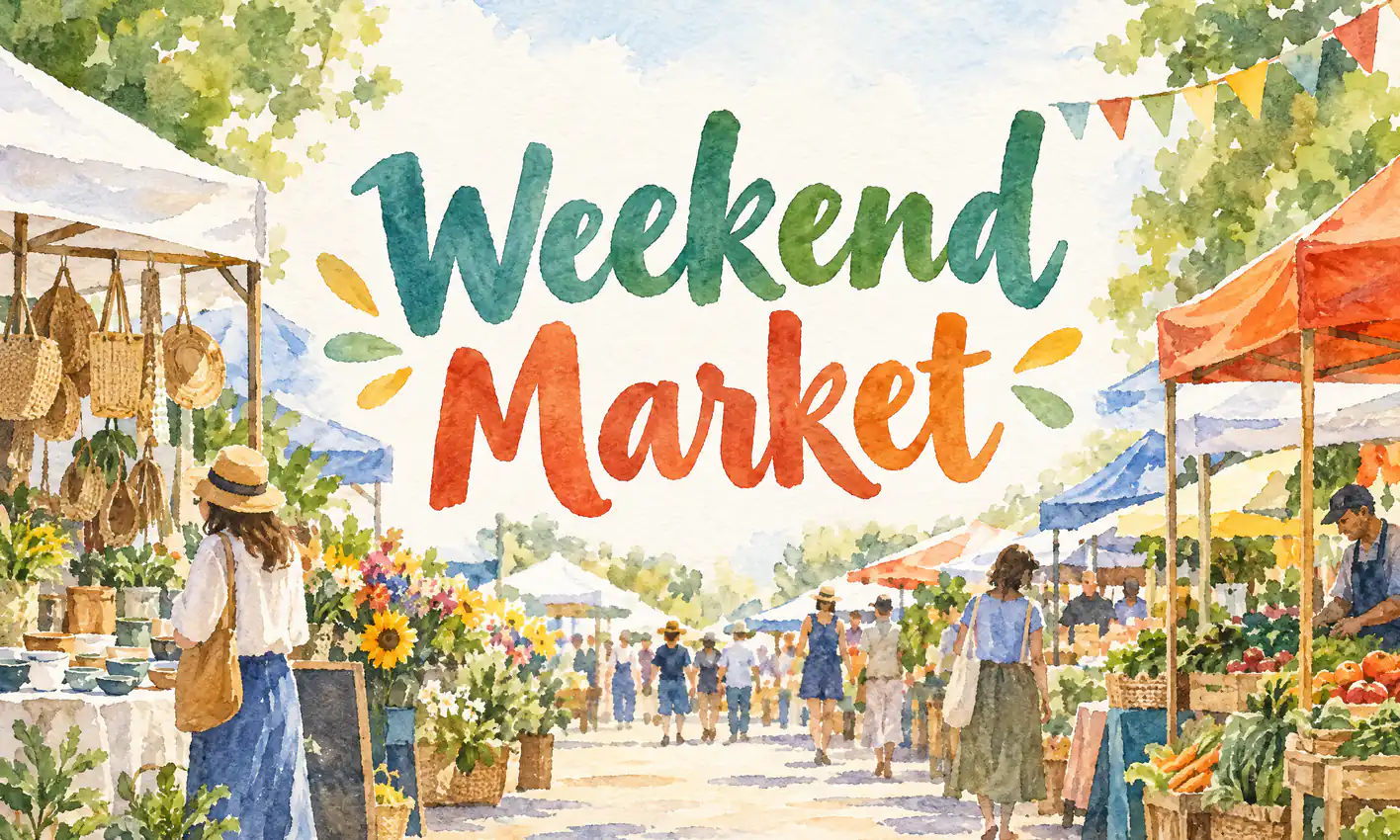
How to turn text into an image
Describe the image you have in mind
Include the subject, setting, and style. You can also upload reference images.
Choose a ratio and generate
Choose a shape for product images, covers, or vertical content, then pick a model and generate.
Download it or keep editing
Your image is saved in My creations, where you can download it. To adjust details or style, keep refining it with the AI photo editor.
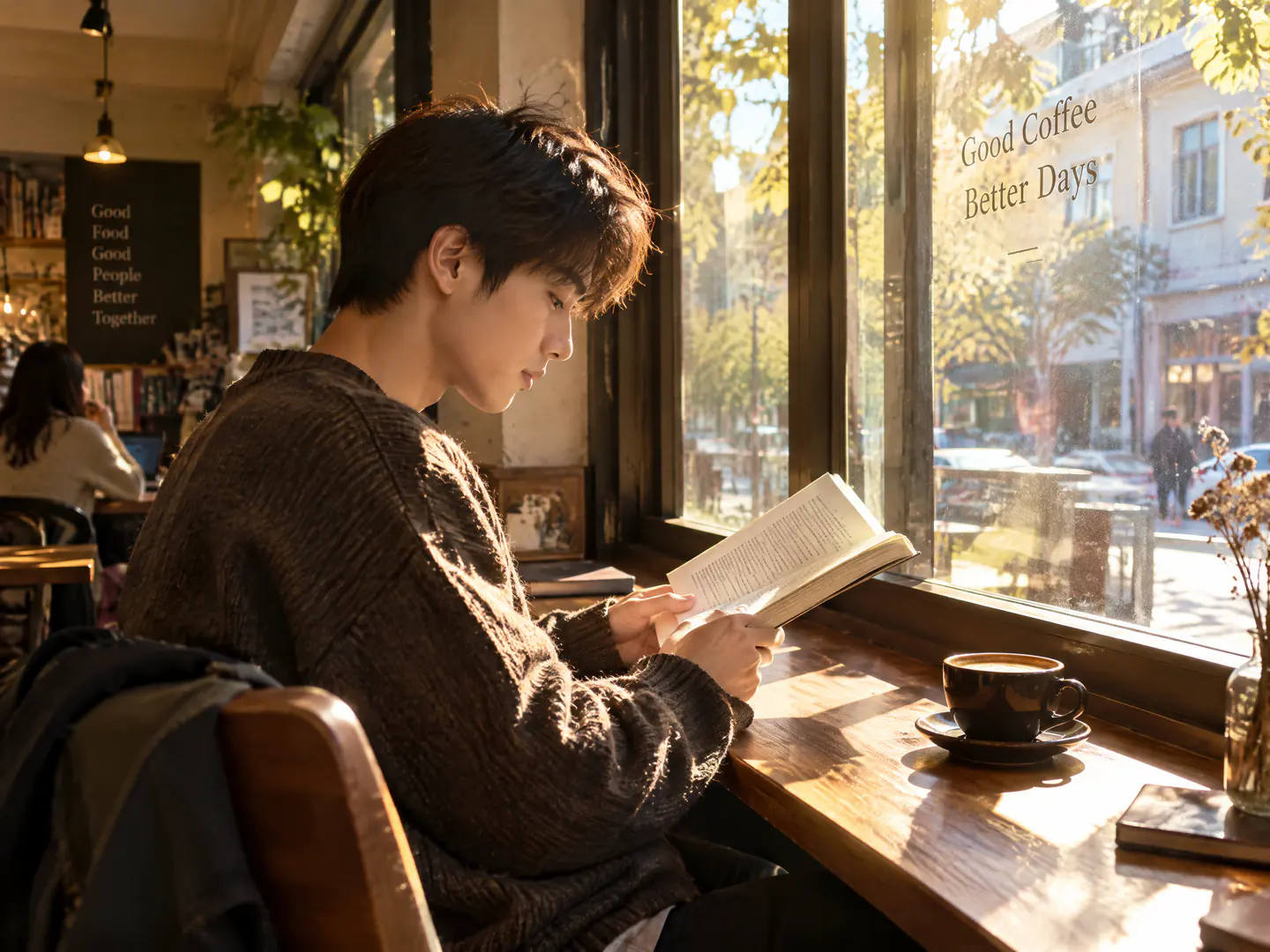
Realistic portraits and lifestyle photos
Describe the person, action, setting, and lighting to create portraits and everyday scenes that look like real photos. For example: “A young person reading by a café window, afternoon sunlight through the glass, warm tones, realistic photo look.”
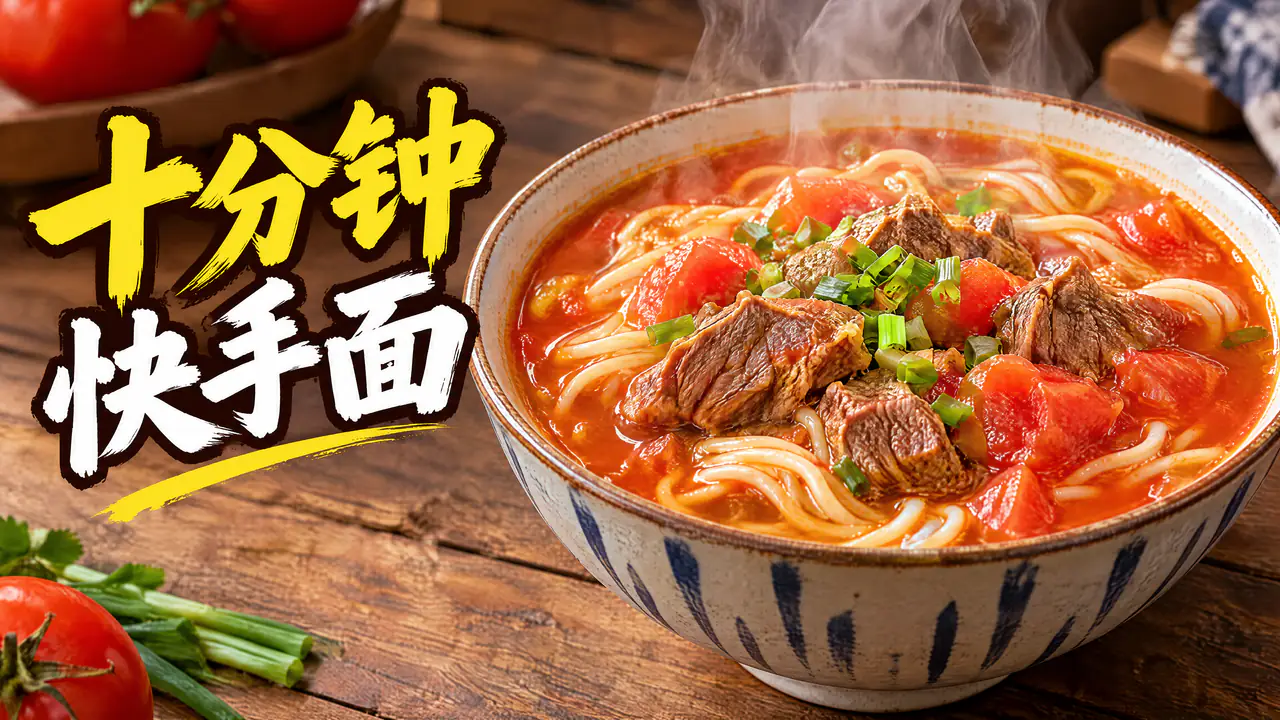
Headline text on posters and covers
Put the exact words in quotation marks, say where they go, and add “no other text.” For example: “Big title ‘十分钟快手面’ (10-minute noodles) on the left, no other text.” Choose 3:4 for rednote posts or 16:9 for YouTube thumbnails.
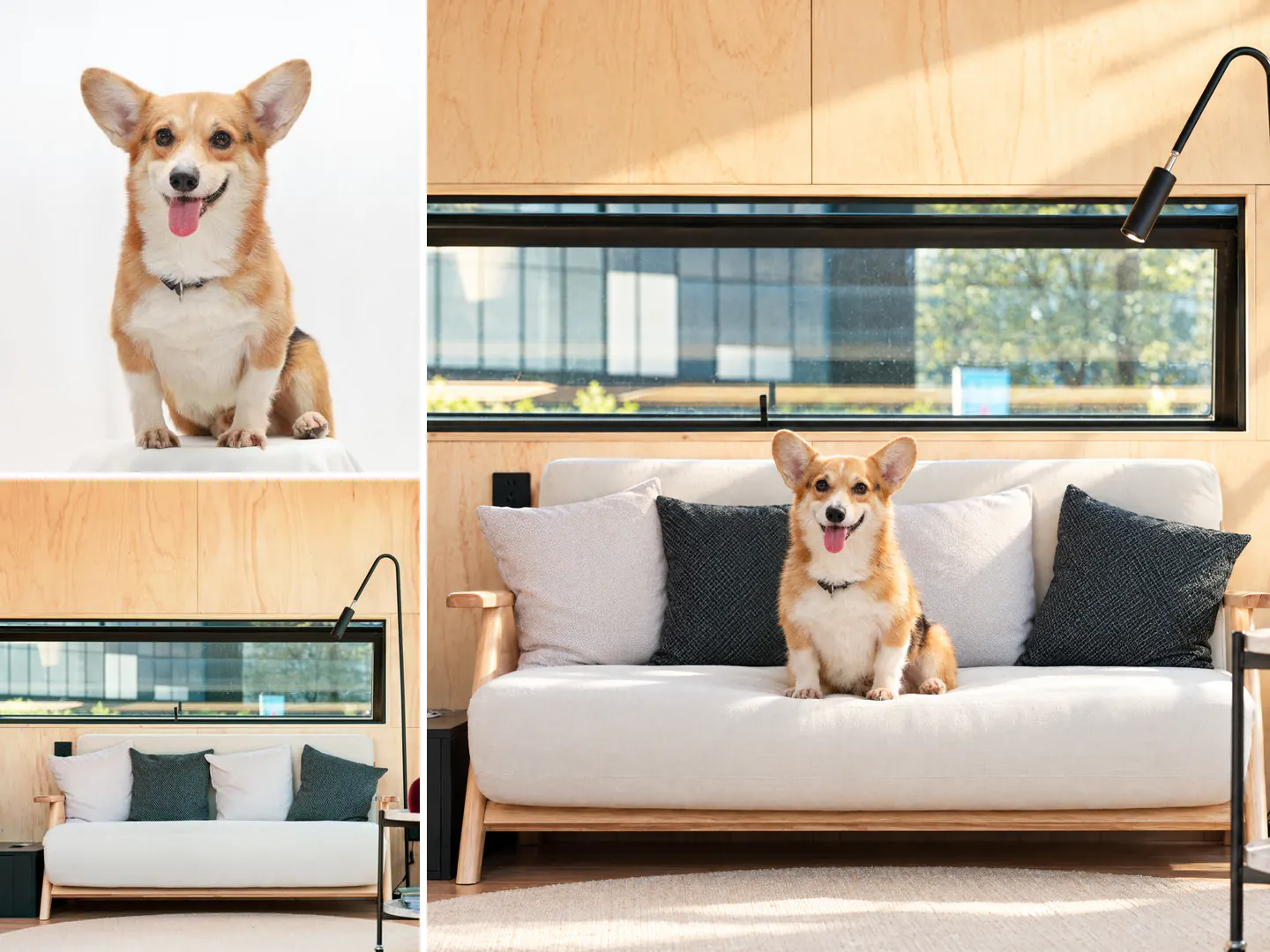
Combine reference images in one scene
Add photos of people, pets, objects, or places and explain how they fit together. For example: “Put the dog from image 1 on the living room sofa in image 2.” Reference images are sent to the model together with your description.
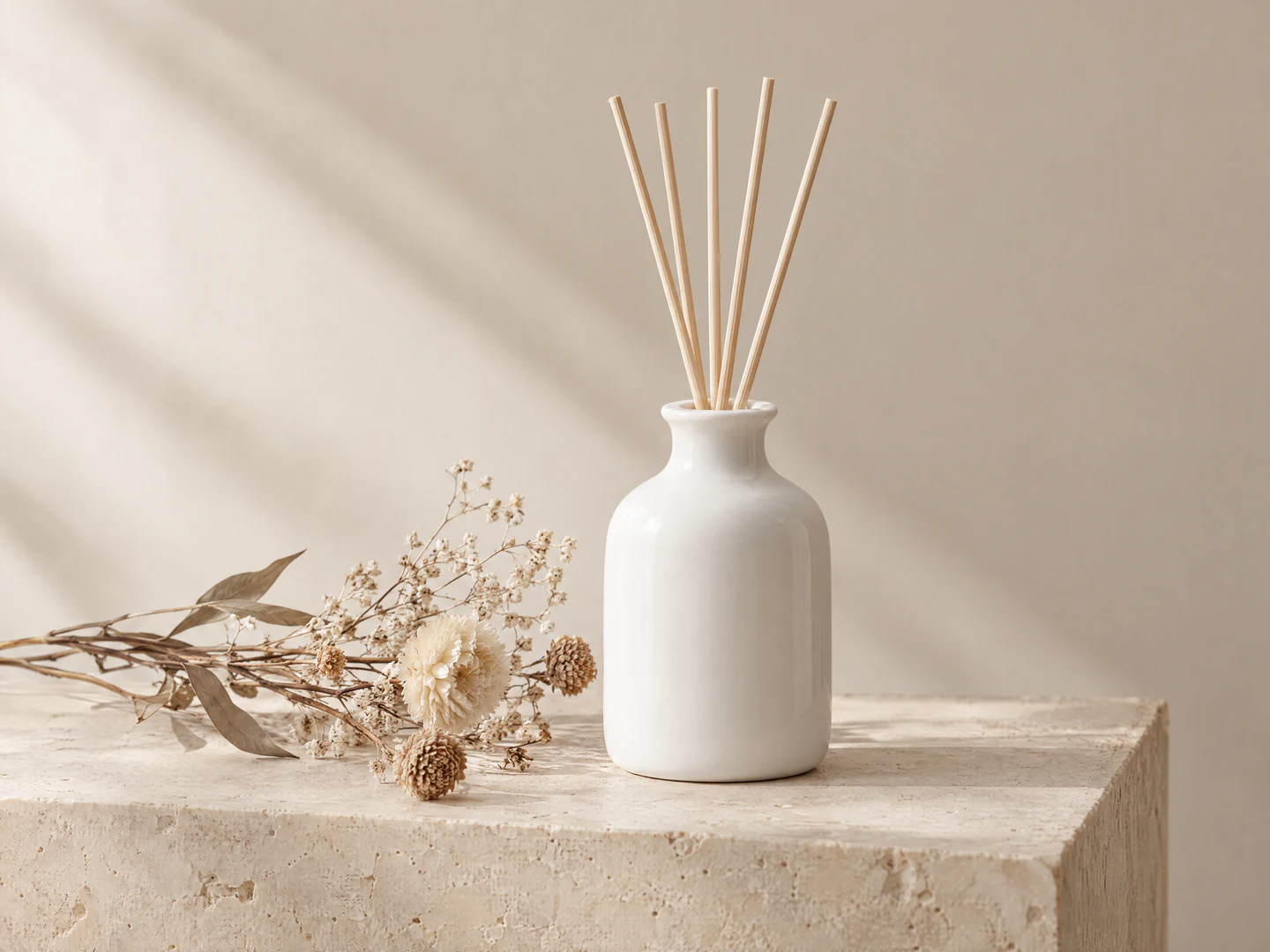
Product display scenes
Describe the surface, props, lighting, and style to create a scene for your product. For example: “A white ceramic diffuser on a beige stone plinth, a few dried flowers beside it, soft side light.” If you already have a product photo and only need a new scene, use the AI background changer.
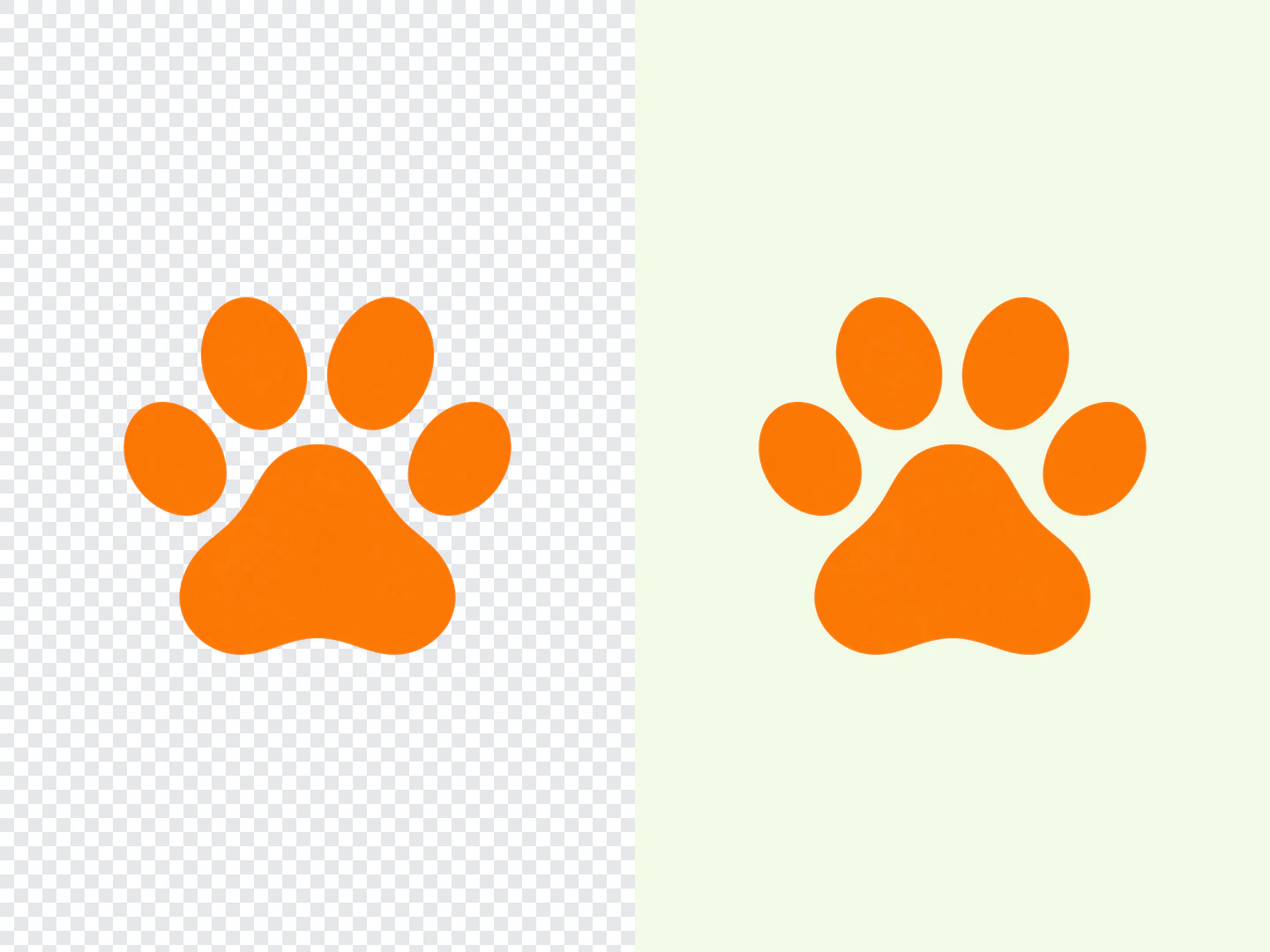
Stickers and icons with transparent backgrounds
Choose GPT Image 2.5 and select “Transparent background” to create stickers, icons, and logos with no background color, ready to place on any background.