How to generate a video from text or images
Describe a scene or add frame images
Write the subject, action, setting and camera movement. Add a product photo or concept image as the start frame, or an end frame to guide the final view.
Choose settings and generate
Select a model, duration and resolution. Choose an aspect ratio for text-to-video; with frame images, the canvas follows the image. Then start generating.
Preview your clip and download
Track progress in My creations. Play the finished video and download it for editing or publishing.
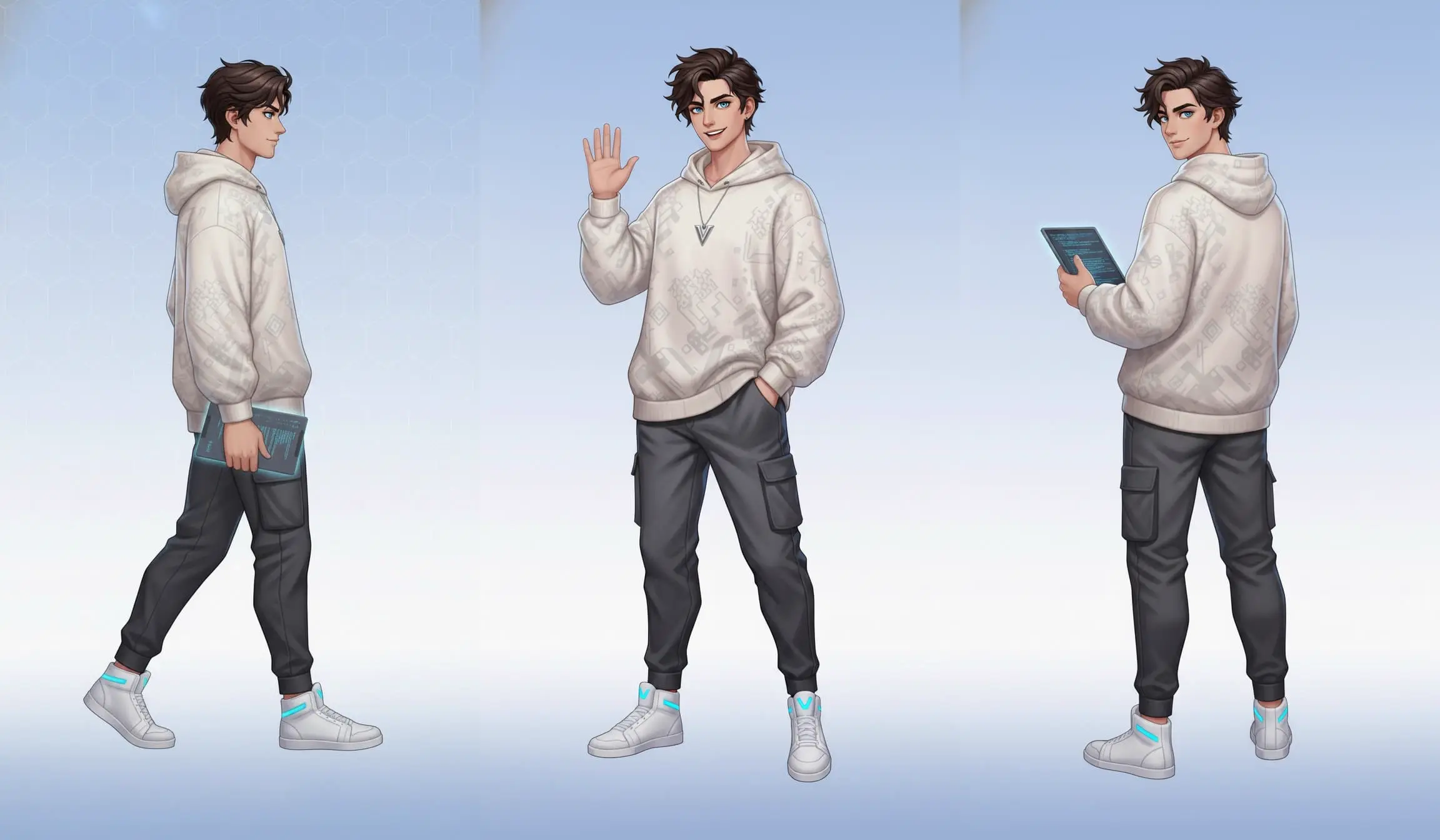
Bring a still subject into motion
Use a portrait, product photo or character image as the start frame and describe the action. Add an optional end frame to guide the closing view of the same clip.
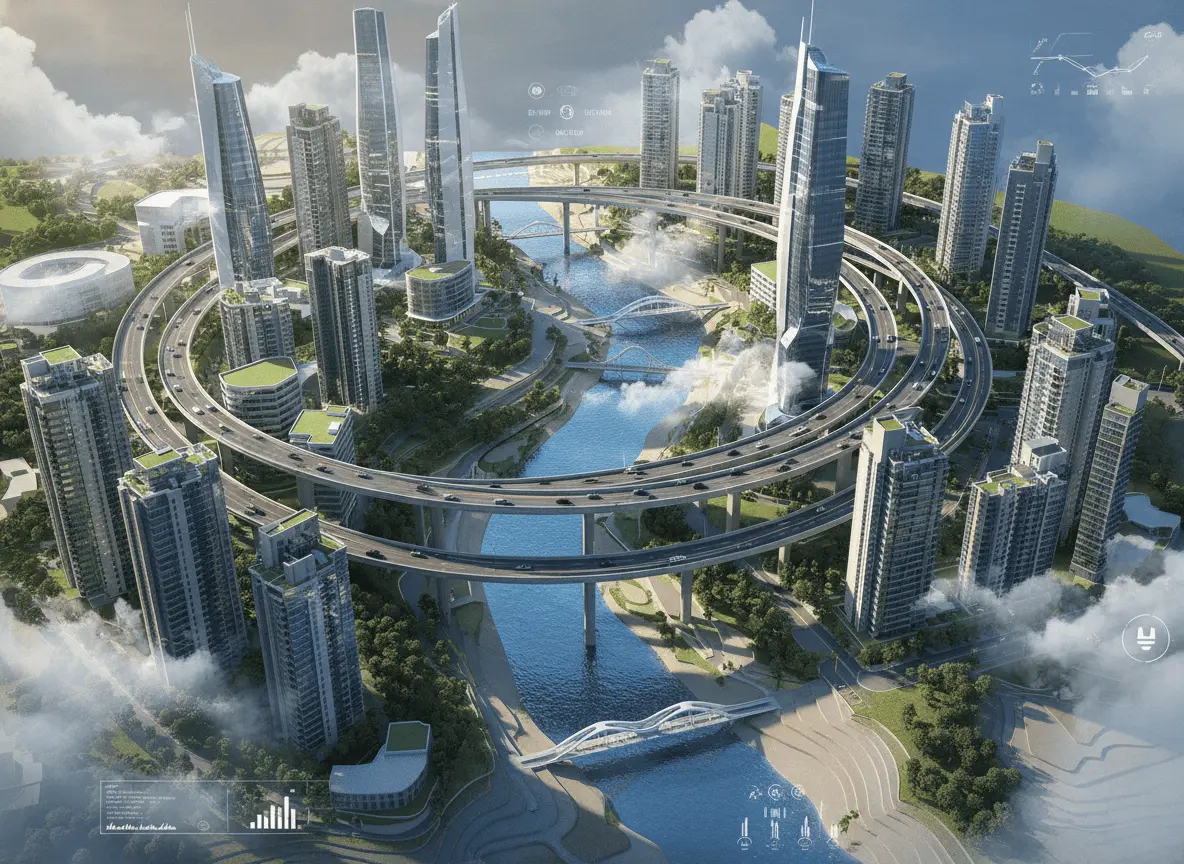
Build scenes from a text prompt
Start without a reference image. Describe a city, landscape, lighting and movement to create footage for Reels, YouTube Shorts or a storyboard.
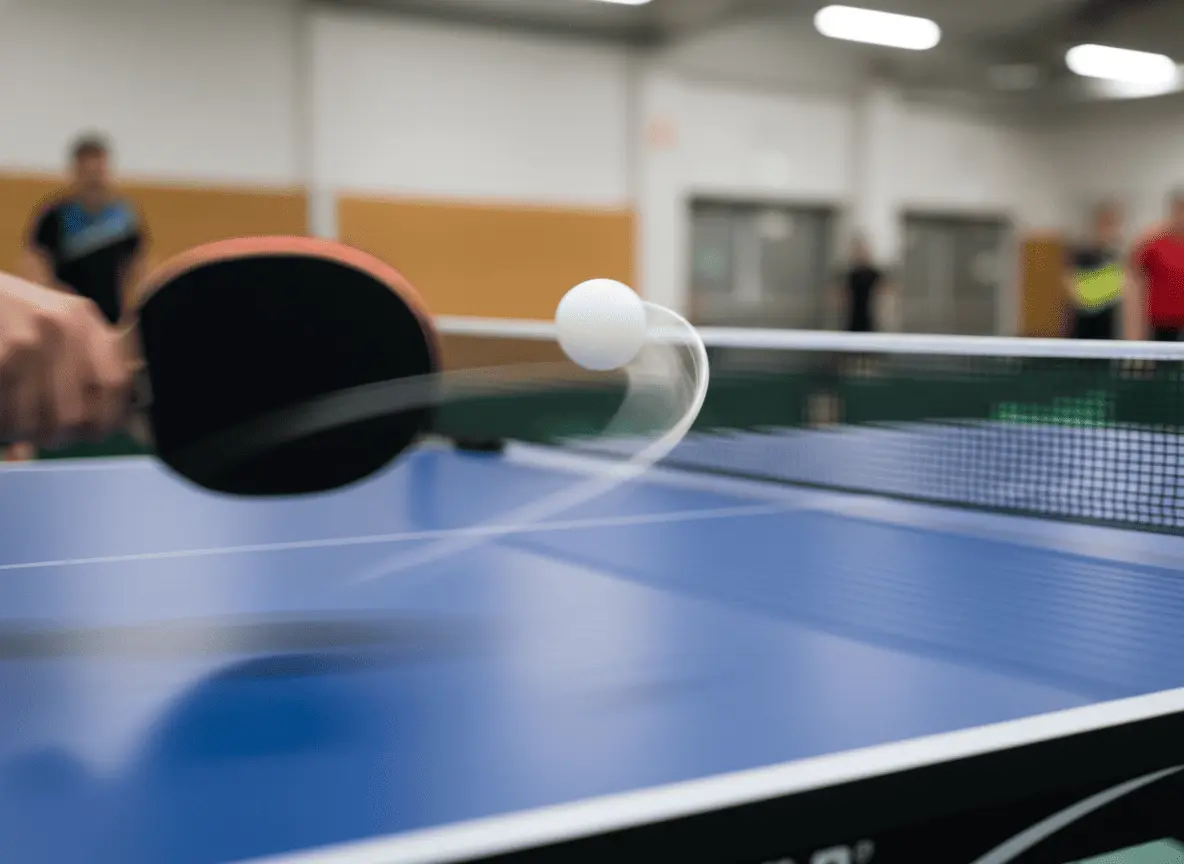
Describe how the camera should move
Try a slow push-in, a tracking shot or a pull-back from a close-up. Build each clip around one main action for clearer pacing.
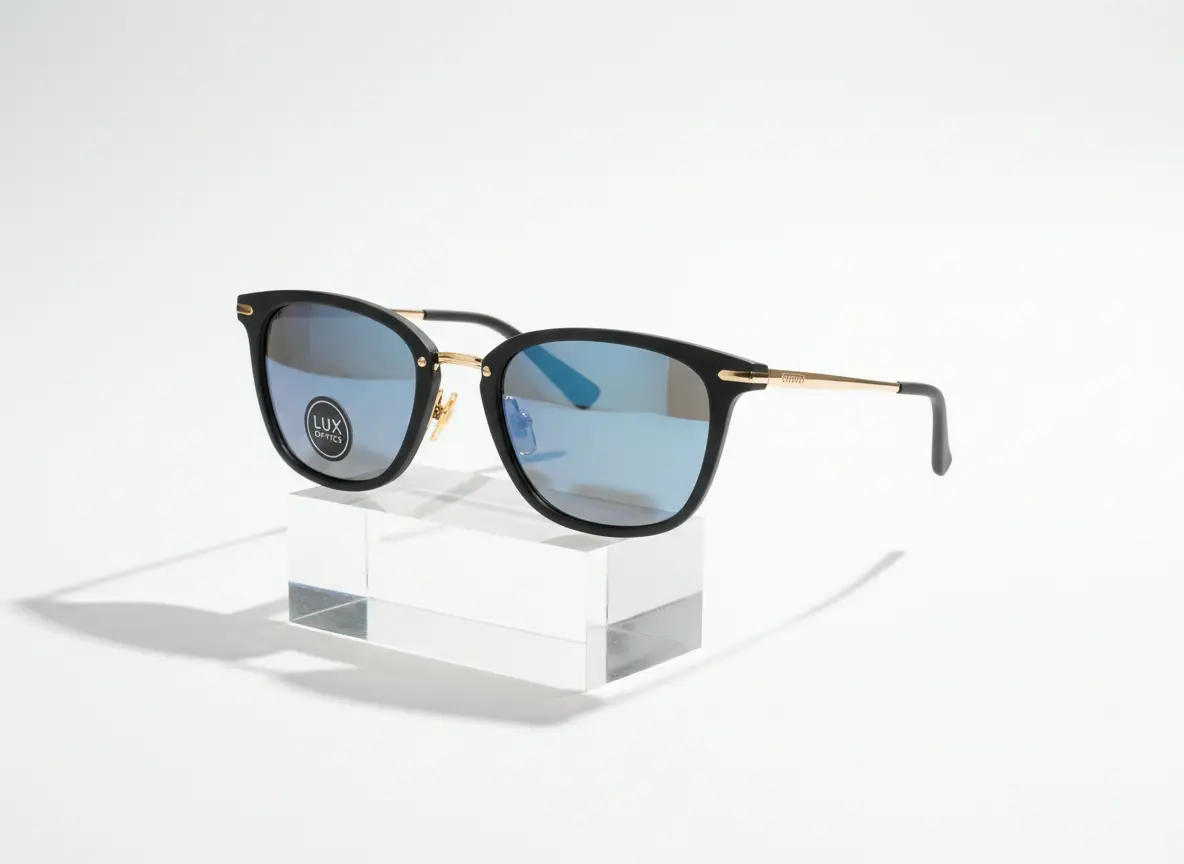
Create clips for product showcases
Start with a product photo and describe the lighting, setting and movement for a launch teaser or product introduction. The photo becomes the first frame, so a single image is enough to generate a motion clip.
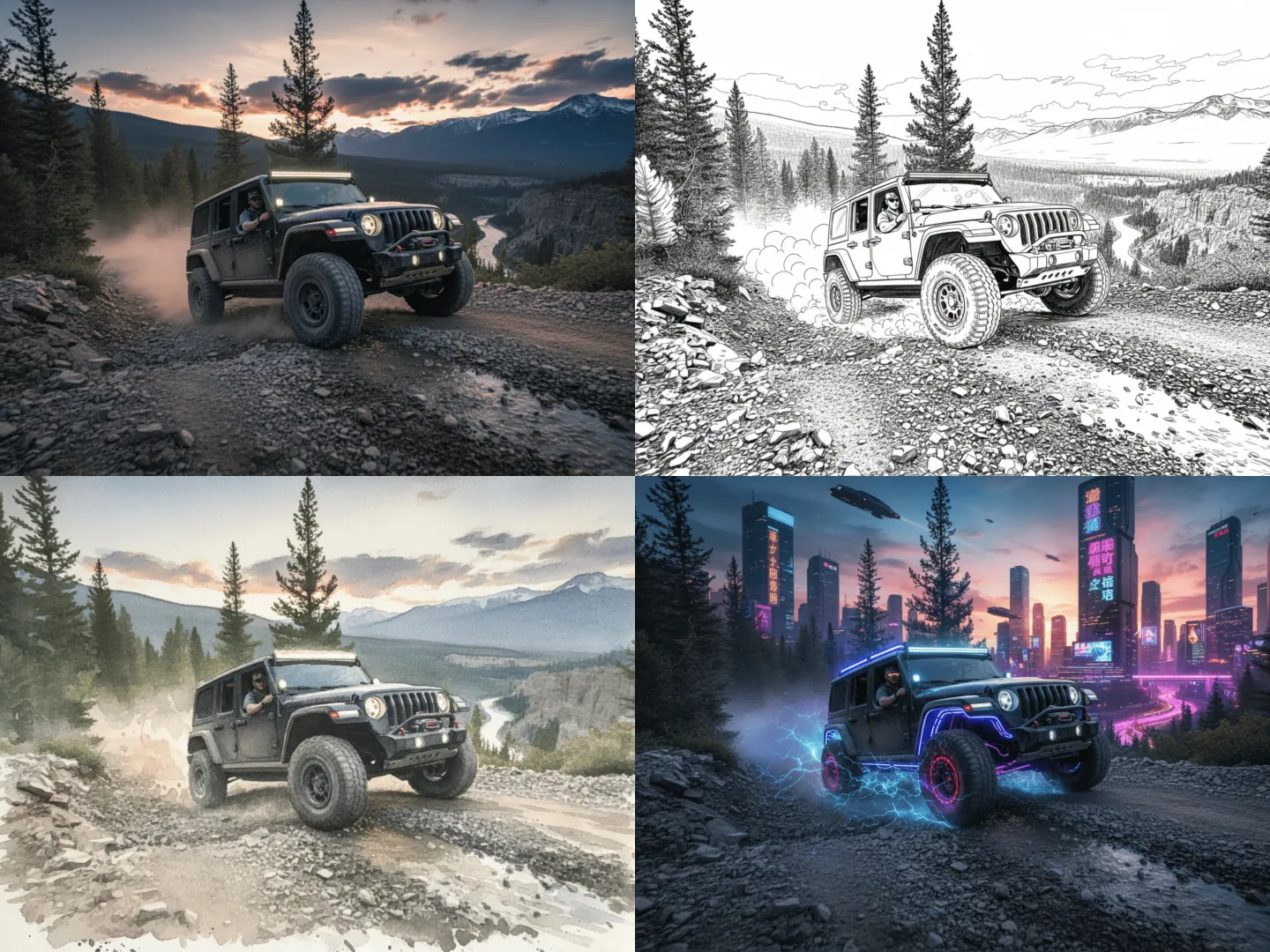
Explore different visual styles
Try realistic, illustrated or cinematic descriptions for the same idea. Generate a few clips and pick the style you like best.